
NexalSEO setup guide: getting started
By Anis Harbaoui, SEO specialist · Updated 16 October 2026 · NexalSEO on GitHub
Install the plugin, connect Search Console, and run your first audit. This takes about 20 minutes for a typical site. Once you’re set up, head to the features page to configure each module.
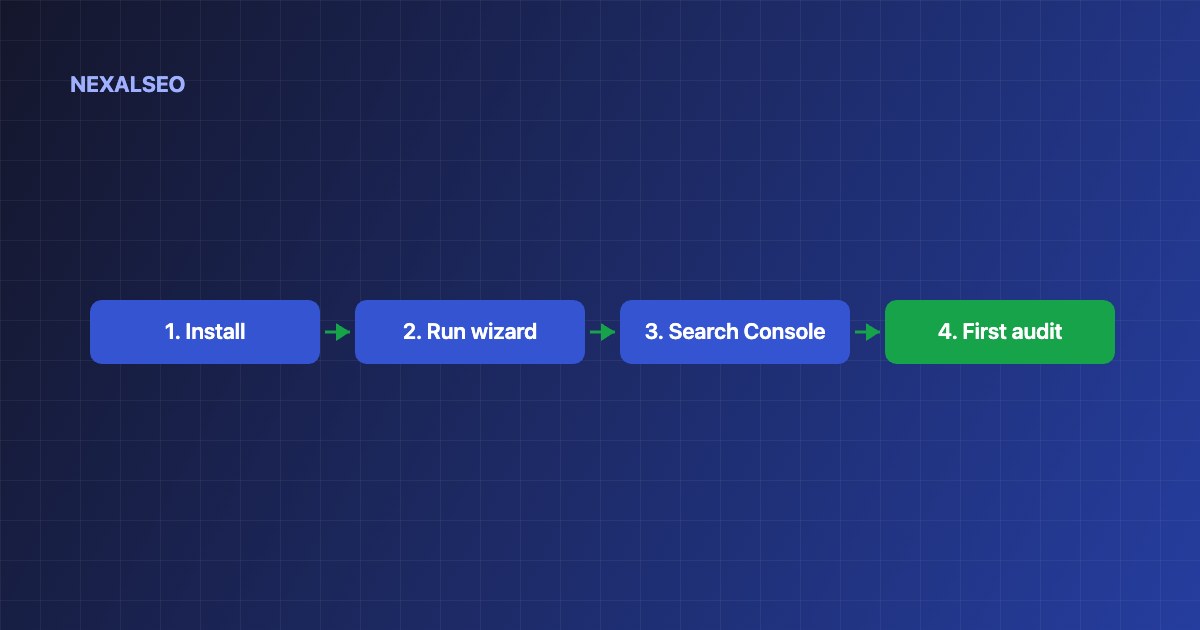
Install and activate
In your WordPress dashboard, go to Plugins → Add New, search “NexalSEO,” and click Install then Activate. Or download the .zip from WordPress.org and upload it manually under Plugins → Add New → Upload Plugin.
Run the setup wizard
NexalSEO opens a setup wizard on first activation. Confirm your site type (blog, business, online store), set your organization name and logo, and choose whether posts or pages default to indexed.
Connect Google Search Console
Verify your site in Search Console, then paste the verification meta tag into NexalSEO’s General settings. This lets NexalSEO submit your sitemap automatically and surface indexing errors inside wp-admin.
Set your titles & meta templates
Under Search Appearance, set default title and meta description templates for posts, pages, and any custom post types. You can override these per page later.
Run your first site audit
Open the NexalSEO dashboard and run a full-site scan. It flags missing meta descriptions, broken internal links, orphaned pages, and duplicate titles so you know exactly what to fix first.
How does the NexalSEO setup wizard work?
On first activation the wizard asks for your site type (blog, business or online store), your organization name and logo, and whether posts and pages should be indexed by default. Those answers drive the defaults for titles, schema and sitemaps, so it pays to answer them carefully rather than click through.
What should you check after NexalSEO setup?
Once the wizard and templates are done, spend five minutes confirming the basics. Open your home page source and check there is one title tag and one canonical link. Open a post and look at the NexalSEO panel in the editor to see the analysis load. Then submit your sitemap index in Google Search Console.
If you used another SEO plugin before, import its settings first and deactivate it afterwards, so the site does not print two sets of titles and schema. Our guide to switching SEO plugins without losing rankings covers the order of steps.
Have not chosen a plugin yet? See how the main options compare.
Where to go next
Once the wizard is done, these pages cover the next jobs: XML sitemaps, redirects and the 404 monitor, schema markup, local SEO and the WooCommerce audit. If you are new to structured data, start with what schema markup is.
Common setup questions
Does NexalSEO work with any theme?
Yes. NexalSEO hooks into wp_head and standard WordPress template tags, so it works with any properly coded theme, including this one.
Will it conflict with another SEO plugin?
Running two SEO plugins at once usually causes duplicate meta tags and sitemaps. Deactivate any other SEO plugin before activating NexalSEO, the setup wizard will warn you if it detects one.
Do I need the Pro version to get started?
No. Every step above works on the free plan. See Free vs Pro for what Pro adds later.
How long does NexalSEO setup take?
About 20 minutes for a typical site.
What if I already use Yoast or Rank Math?
Import your settings first, then deactivate the old plugin so the site does not output duplicate titles or schema.