
Schema markup validator tools: how to test structured data
By Anis Harbaoui, SEO specialist
A schema markup validator checks that your structured data is written correctly and uses the Schema.org vocabulary properly. Google runs a separate test for whether a page qualifies for rich results, and Search Console reports what Google found across the whole site. This guide shows which tool answers which question, plus a simple routine for testing before and after you publish.
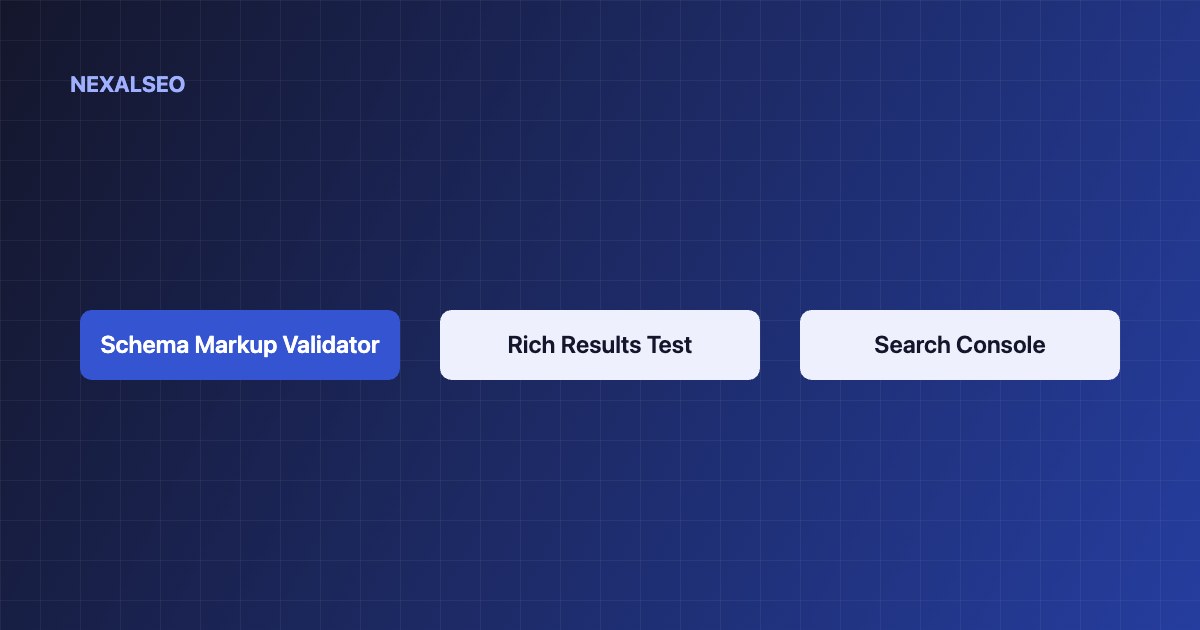
- Use the Schema Markup Validator to check syntax and vocabulary for any type of markup.
- Use the Rich Results Test to check eligibility for Google features.
- Use Search Console to monitor the live site over time.
- Fix errors first. Warnings are optional properties.
Which schema markup validator should you use?
It depends on the question you are asking. Each tool checks something different, and a page can pass one and fail another.
| Tool | What it checks | Best for |
|---|---|---|
| Schema Markup Validator | Syntax and Schema.org vocabulary, for any search engine | Checking every type, including ones Google does not use |
| Rich Results Test | Whether the page is eligible for Google rich results | Pre-launch checks of supported types |
| Search Console reports | What Google crawled and indexed on the live site | Monitoring after launch |
How does a schema markup validator work?
A validator reads your markup, compares it with the Schema.org vocabulary and reports errors and warnings. Use it before you publish like this:
- Paste the page URL or the code into the Schema Markup Validator and fix every error.
- Run the same page through the Rich Results Test to see whether a Google feature applies.
- Test one page from each template: the home page, a post, a product and a category.
- Compare the output with the visible page. Markup that describes content readers cannot see is a problem even when it validates.
How do you read errors and warnings?
An error means a required property is missing or a value is invalid, so the item is not eligible. A warning means a recommended property is missing. Add it if you have the data and skip it if you do not.
- Unparsable structured data. Usually a JSON mistake, such as a trailing comma or a missing quote.
- Missing field name. A required property is absent from the item.
- Invalid value type. A date, URL or number is formatted incorrectly.
How do you monitor structured data after launch?
Search Console shows enhancement reports for the types it supports, with counts of valid items, items with warnings and items with errors. After a fix, use the validation button and give Google time to recrawl. That can take days or weeks depending on how often your pages are crawled.
What should you check on a WordPress site?
- Only one plugin or theme prints schema. Two sources create duplicates. See how to find and fix duplicate schema.
- The nodes connect through stable IDs, as explained in our structured data guide.
- Markup still validates after a theme, plugin or WordPress update.
Frequently asked questions
Is the Rich Results Test the same as the Schema Markup Validator?
No. The Rich Results Test checks eligibility for Google features. The Schema Markup Validator checks syntax and vocabulary for any markup.
Why does my markup validate but no rich result appears?
Valid markup is only a requirement. Google also weighs quality, relevance and its own choices before showing a rich result.
How long until Search Console shows my fixes?
It depends on how often Google recrawls the page. Expect days to weeks after you request validation.
Do I need to test every page?
Test one page from each template. Pages built from the same template share the same markup.
Related guides
Why rich results do not appear
Reasons valid markup still shows nothing.
Conflicting markup
Find and remove duplicate sources.
Structured data basics
What the markup means and how it fits together.
NexalSEO prints one connected graph, so there is less to debug.
See the schema module